Quick Facts
- Category: Programming
- Published: 2026-05-17 03:05:43
- Orbital AI: A Step-by-Step Guide to Cowboy Space's Rocket-Powered Data Center Strategy
- NEAR Intents Unlocks Seamless Swaps: Over 100 Tokens Now Convertible to Zcash
- Maximize Your Gaming: Xbox Game Pass Ultimate 9-Month Deal Explained
- From Digital Chaos to Clarity: How Gemini Organizes Your Research Folders
- OpenAI's ChatGPT Banking Integration: Convenience Versus Privacy Risks
Introduction
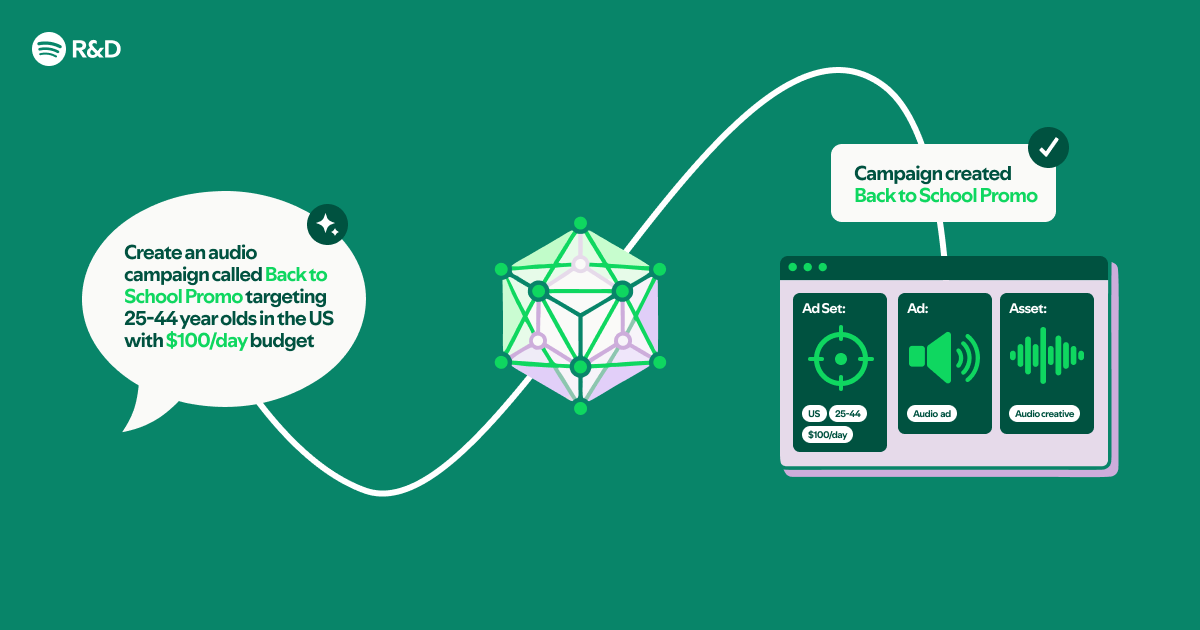
Imagine managing your Spotify ad campaigns by simply typing requests like “show me last week’s impression data” or “increase the budget for my top-performing ad by 20%.” With a natural language interface powered by Claude Code plugins, that becomes a reality. This guide walks you through transforming an OpenAPI specification and Markdown documentation into a fully conversational ad management tool — without writing a single line of traditional code. You’ll leverage Claude Code’s ability to read structured files and follow instructions, turning static API specs into a dynamic, voice-like assistant for the Spotify Ads API.
What You Need
- Claude Code CLI – installed and configured on your machine (latest version recommended).
- Spotify Ads API credentials – obtain a client ID, client secret, and access token from the Spotify for Developers portal.
- OpenAPI specification file – either the official Spotify Ads API spec (YAML or JSON) or one you generate.
- Markdown documentation – custom files that describe how to use the API endpoints in plain language.
- A text editor – any editor for creating or editing Markdown and YAML files.
- Basic familiarity with the command line – running Claude Code commands is essential.
Step-by-Step Instructions
Step 1: Set Up Claude Code
First, ensure you have the Claude Code CLI installed and authenticated. Open your terminal and run claude login to link your Anthropic account. Verify the installation with claude --version. Claude Code works as a plugin-based assistant; you don’t need to write any compiled code — just configuration files that teach it how to interact with the Spotify Ads API.
Step 2: Obtain Spotify Ads API Credentials
Go to the Spotify for Developers Dashboard and create a new app. Under the “API Credentials” section, note your Client ID and Client Secret. Generate a temporary access token using the Spotify Authorization Code Flow or Client Credentials flow. For testing, a manual token from the dashboard is fine. Store these securely – you’ll reference them in configuration files.
Step 3: Create or Obtain the OpenAPI Spec
The OpenAPI specification defines every endpoint, parameter, and response of the Spotify Ads API. You can download the official spec from the Spotify developer docs or fetch it via their API documentation portal. Save the file as spotify-ads-api.yaml in your project folder. This file tells Claude Code exactly what endpoints are available and what data they expect.
Step 4: Write Plain-Language Markdown Guides
While the OpenAPI spec is structured, Claude Code also benefits from human-readable instructions. Create a Markdown file (e.g., ads-manual.md) that explains common tasks in natural language. For example:
- How to retrieve campaign performance data
- How to adjust ad budgets
- How to create a new ad creative
Use examples like: “To get last week’s impressions, call the /campaigns/{id}/analytics endpoint with a date range parameter.” This Markdown file becomes the “brain” that helps Claude Code understand user intent.
Step 5: Configure the Claude Code Plugin
Claude Code uses a plugin configuration file (usually .claude/plugins.yaml) to know which files to load. Create this file in your project root and include:

plugins:
  - source: file
    path: ./spotify-ads-api.yaml
  - source: file
    path: ./ads-manual.md
This tells Claude Code to treat both the OpenAPI spec and your Markdown guide as context for all conversations. You can also add a instructions.md file to set a system prompt like: “You are a Spotify Ads assistant. Use the OpenAPI spec and the manual to answer questions and perform actions. Always confirm before making changes.”
Step 6: Test the Conversational Interface
Launch Claude Code by running claude in your project directory. Now try asking questions in natural language:
- “What campaigns do I have?”
- “Show me impressions for campaign XYZ over the last 7 days.”
- “Increase the budget of my best campaign by 10%.”
Claude Code uses the OpenAPI spec to map your words to the correct API endpoints and the Markdown manual to fill in conversational details. The plugin configuration ensures it has both pieces of information simultaneously. Start with simple read-only queries to verify the setup works.
Step 7: Iterate and Refine
No natural language interface is perfect on the first try. Review how Claude Code interprets ambiguous requests. Add more examples to your Markdown guide or tweak the system instructions. For instance, you might add a note: “If the user says ‘high performers,’ assume they mean campaigns with above-average click-through rate.” Each update to the Markdown or spec updates the assistant’s intelligence – no recompilation needed.
Tips for Success
- Be explicit in your Markdown – the clearer your examples, the fewer misunderstandings.
- Secure your credentials – never hardcode tokens in Markdown files; use environment variables or a separate
.envfile loaded by Claude Code. - Start with read-only actions – test GET requests before allowing any POST or PUT to avoid accidental charges.
- Use a staging environment – if possible, test against a sandbox API endpoint before touching real ad accounts.
- Leverage Claude Code’s multi-file context – you can add additional Markdown files for specific use cases (e.g., reporting, billing).
- Document your prompts – keep a log of what users ask and how the assistant responds; use that log to improve your guides.
- Remember: no compiled code required – the entire setup is configuration-driven, making it easy to modify and share with your team.